This guide is written for store owners and their team. You do not need to write code. Every page explains what a feature does, why you would use it, and exactly where to click.
Key terms in simple words
Term
What it means
Product sync
SmartFind AI keeps a copy of your Shopify products so search can find them quickly.
App embed
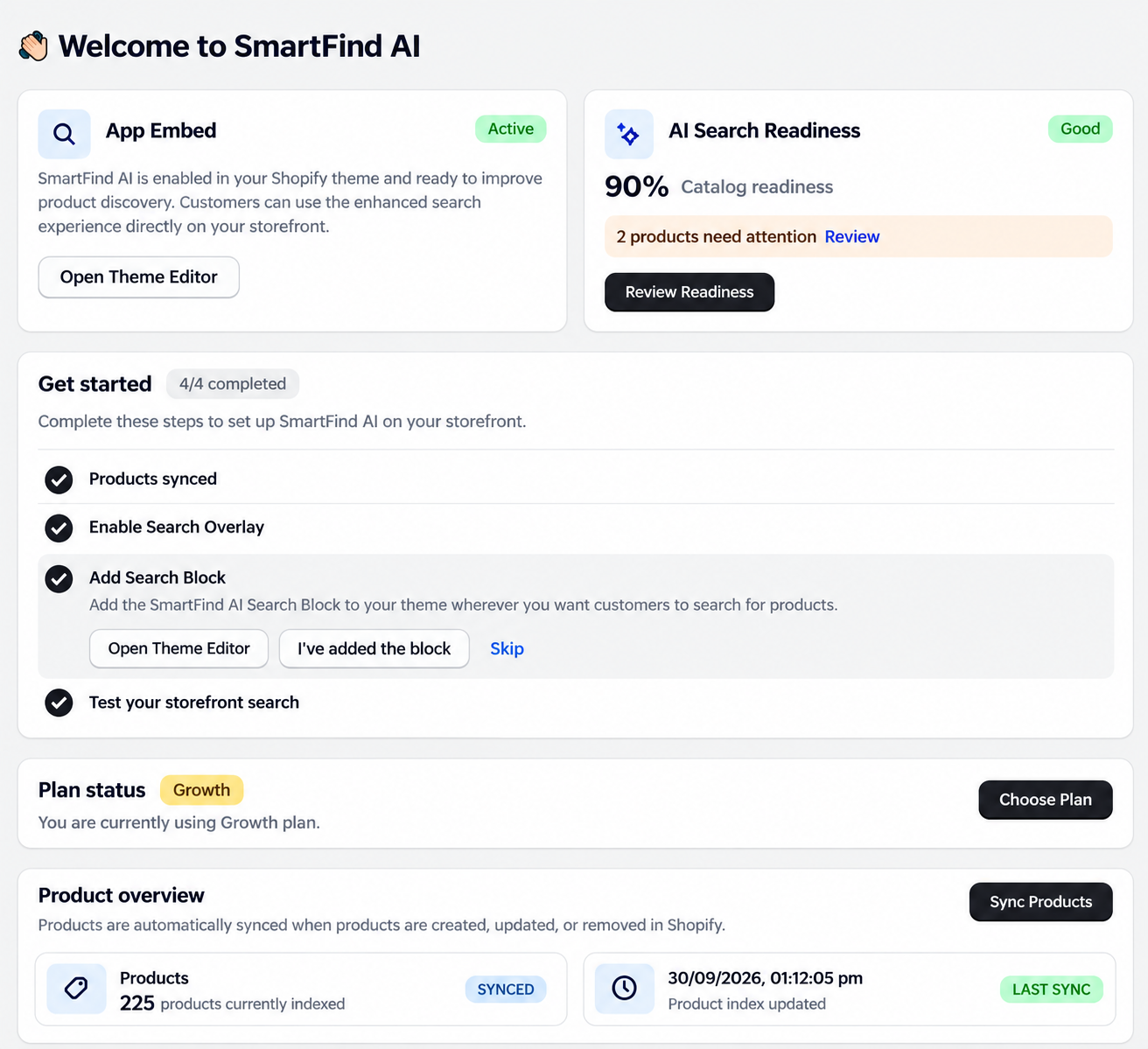
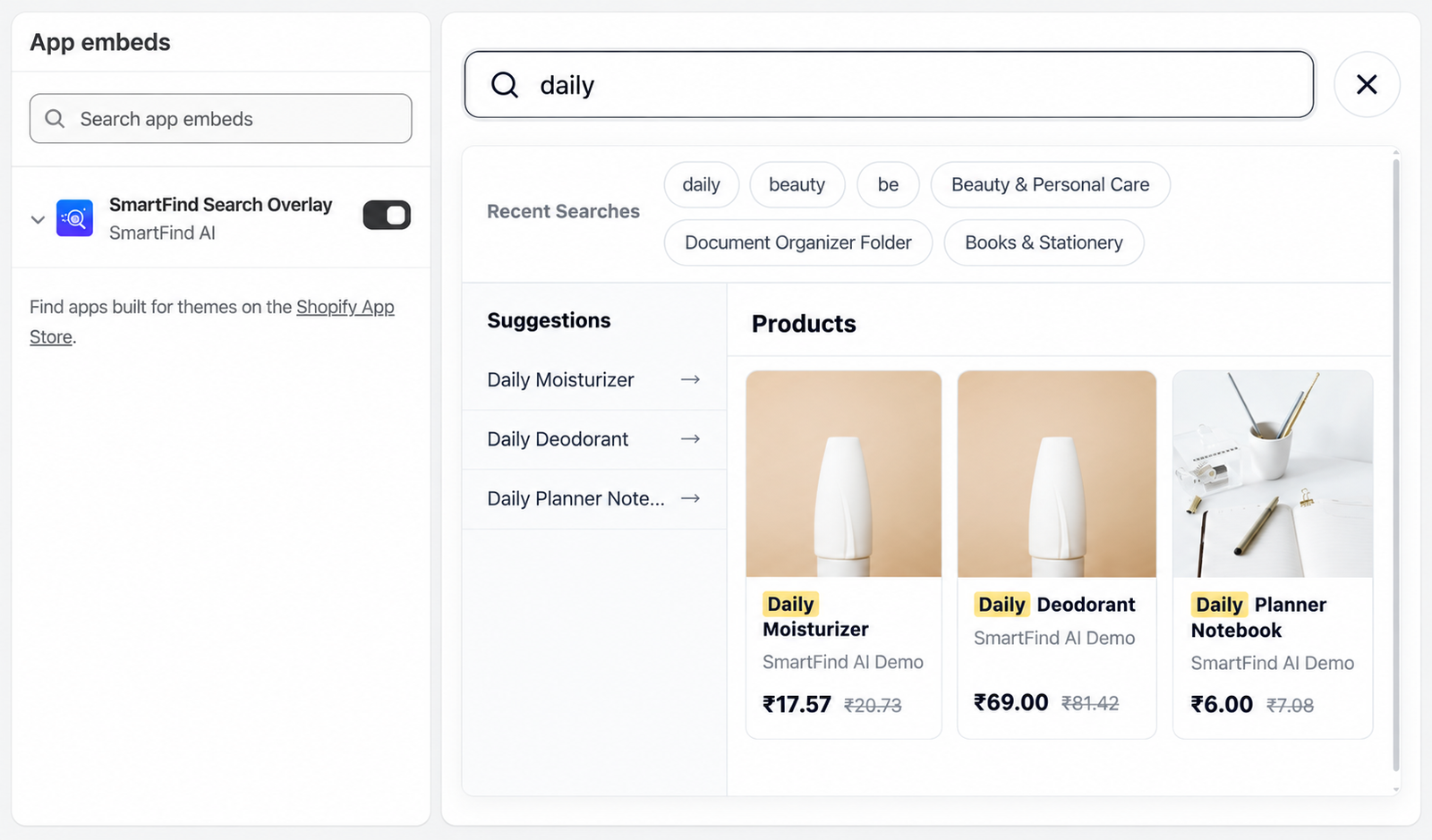
A switch in the Shopify Theme Editor that turns on the SmartFind AI search on your storefront.
Synonym
Another word shoppers use for the same thing, such as "shower gel" for "body wash".
Pin
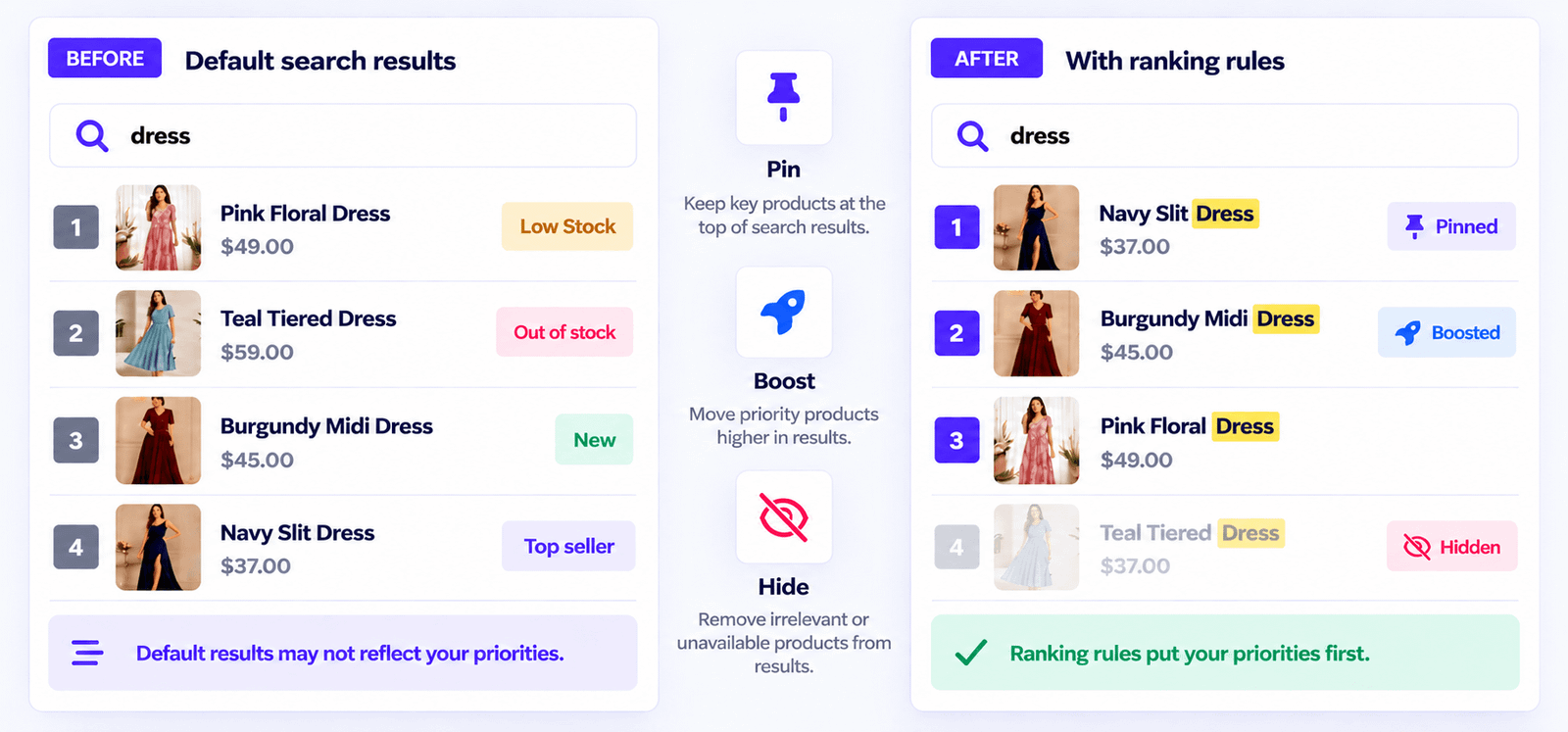
Keeps a product at the top of the results for a search keyword.
Boost
Moves a product higher in the results for a search keyword.
Hide
Keeps a product out of the results for a search keyword.
No-result search
A search that found nothing. These show you where shoppers are missing products.
AI generation
One use of the AI, such as analyzing a product. Each plan has a monthly allowance.
Install and set up
Go from install to working storefront search without editing theme code.
Prerequisites
A Shopify store with products in the catalog.
Access to install and configure apps in Shopify Admin.
Important: Review the permissions Shopify shows before you approve the install. The app asks for store owner details, and for permission to edit products and Online Store page content.
Open AI Search Readiness and scan your products to find weak product content.
Common mistake: The search will not show on your store until the app embed is turned on in the Theme Editor. If search is missing, check this first.
Search settings
Set how search behaves and looks. No code needed.
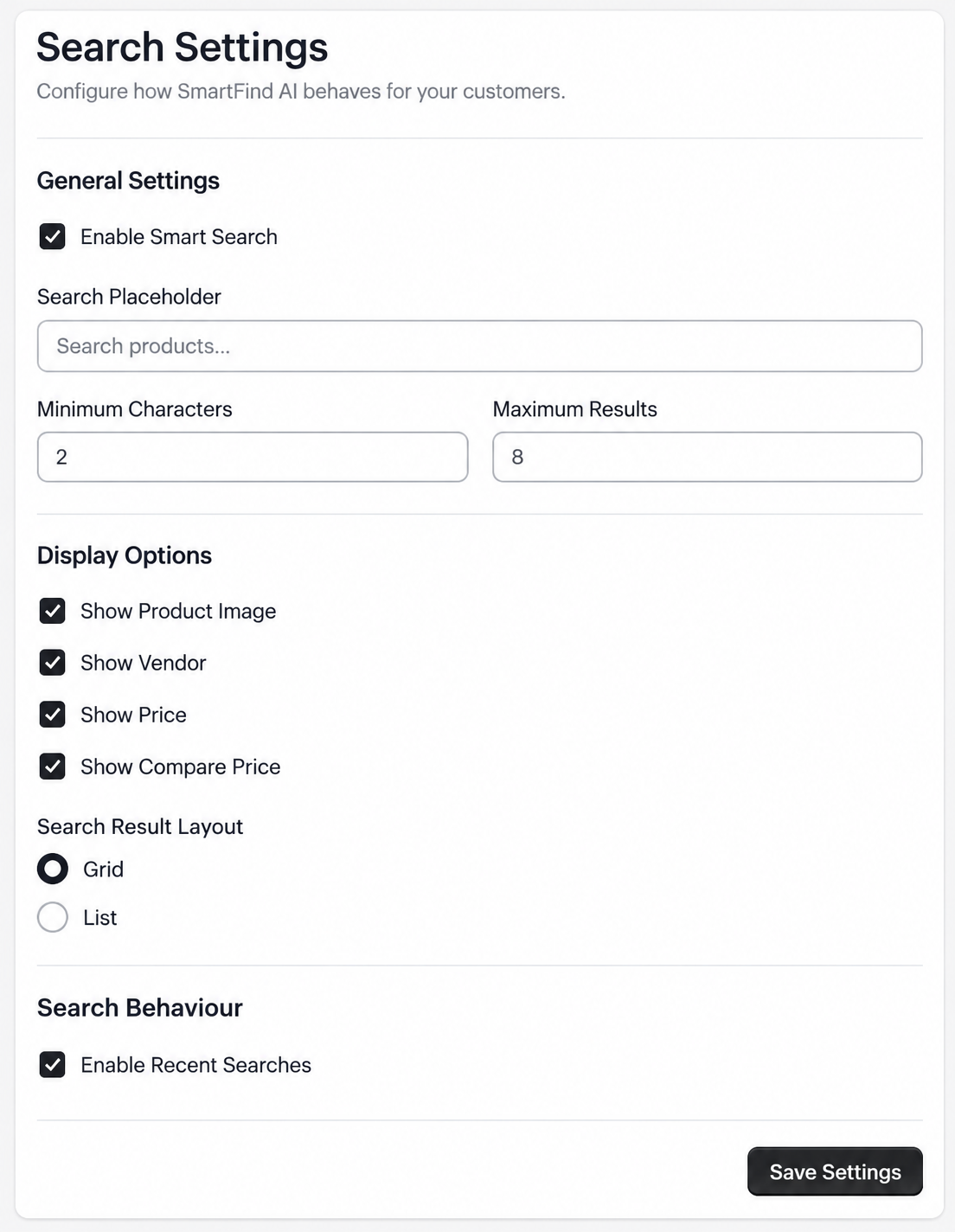
In simple words: Search settings is the control panel for the search box. It decides when results appear, how many appear, and what each result shows.
Behavior
Turn Smart Search on or off.
Set the search placeholder text.
Set the minimum characters before results appear, and the maximum number of results.
Turn recent searches on or off.
Result display
Show or hide the image, vendor, price and compare-at price.
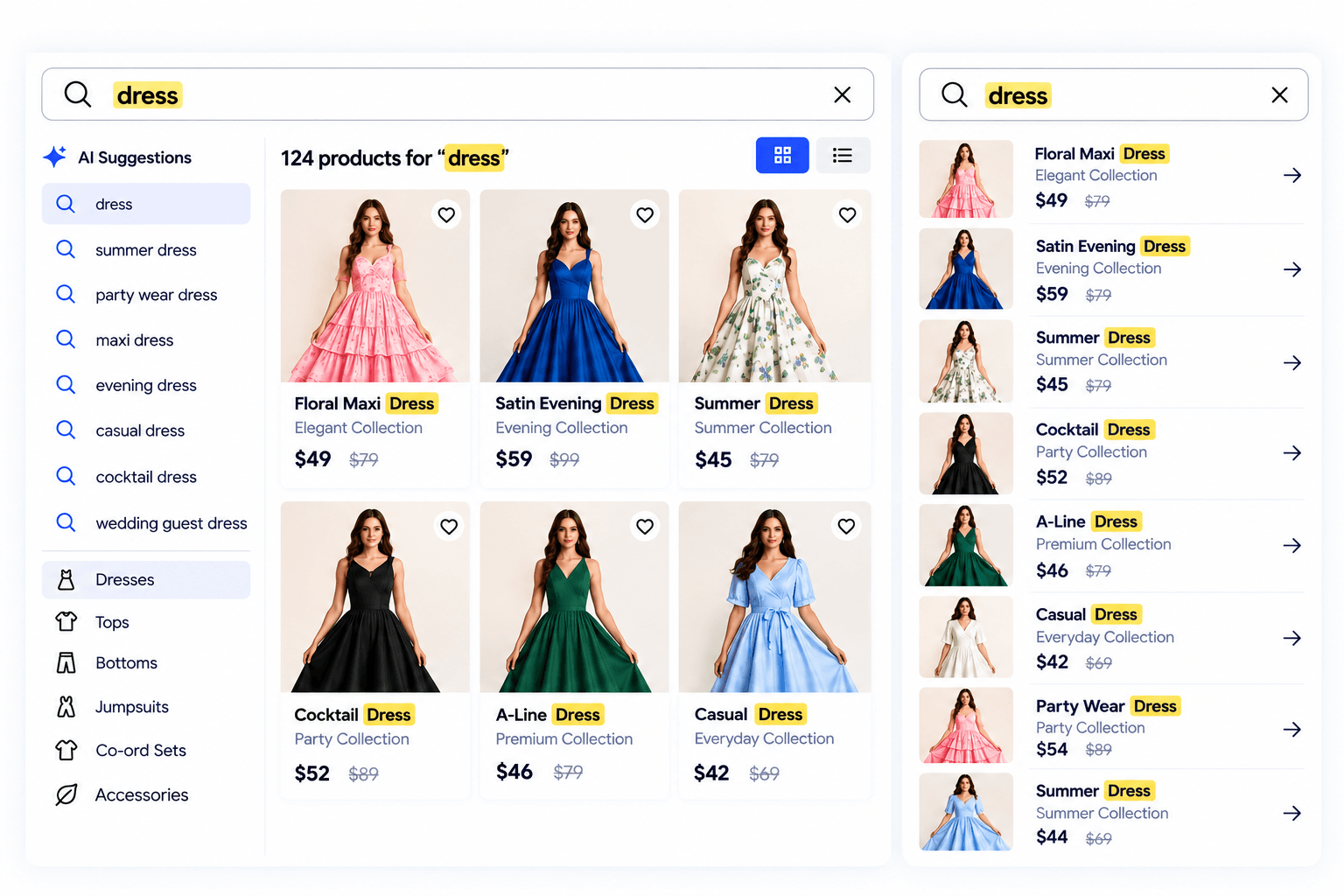
Choose a Grid layout (image cards) or a List layout (compact rows).
Layouts adjust for desktop, tablet and mobile.
What each option means
Smart Search on or off: turns SmartFind AI search on or off for your store.
Placeholder text: the grey hint inside the empty search box, for example "Search products".
Minimum characters: how many letters a shopper types before results appear. A low number shows results sooner. A higher number waits for more letters.
Maximum results: the most products shown in the results list.
Recent searches: shows what the shopper searched before, so they can search again with one click.
Image, vendor, price and compare-at price: choose which details each result shows.
Grid or List: Grid shows larger image cards and suits visual products. List shows compact rows and suits long product names.
Tip: Change one setting at a time, then test on your storefront. This makes it easy to see what each setting does.
Search Block and overlay
Add SmartFind search from the Shopify Theme Editor. You don't edit theme code.
Search overlay (app embed)
The overlay connects to your theme's search icon or search input and opens SmartFind results. Your store logo and home links are left alone. It works on desktop and mobile.
Search Block
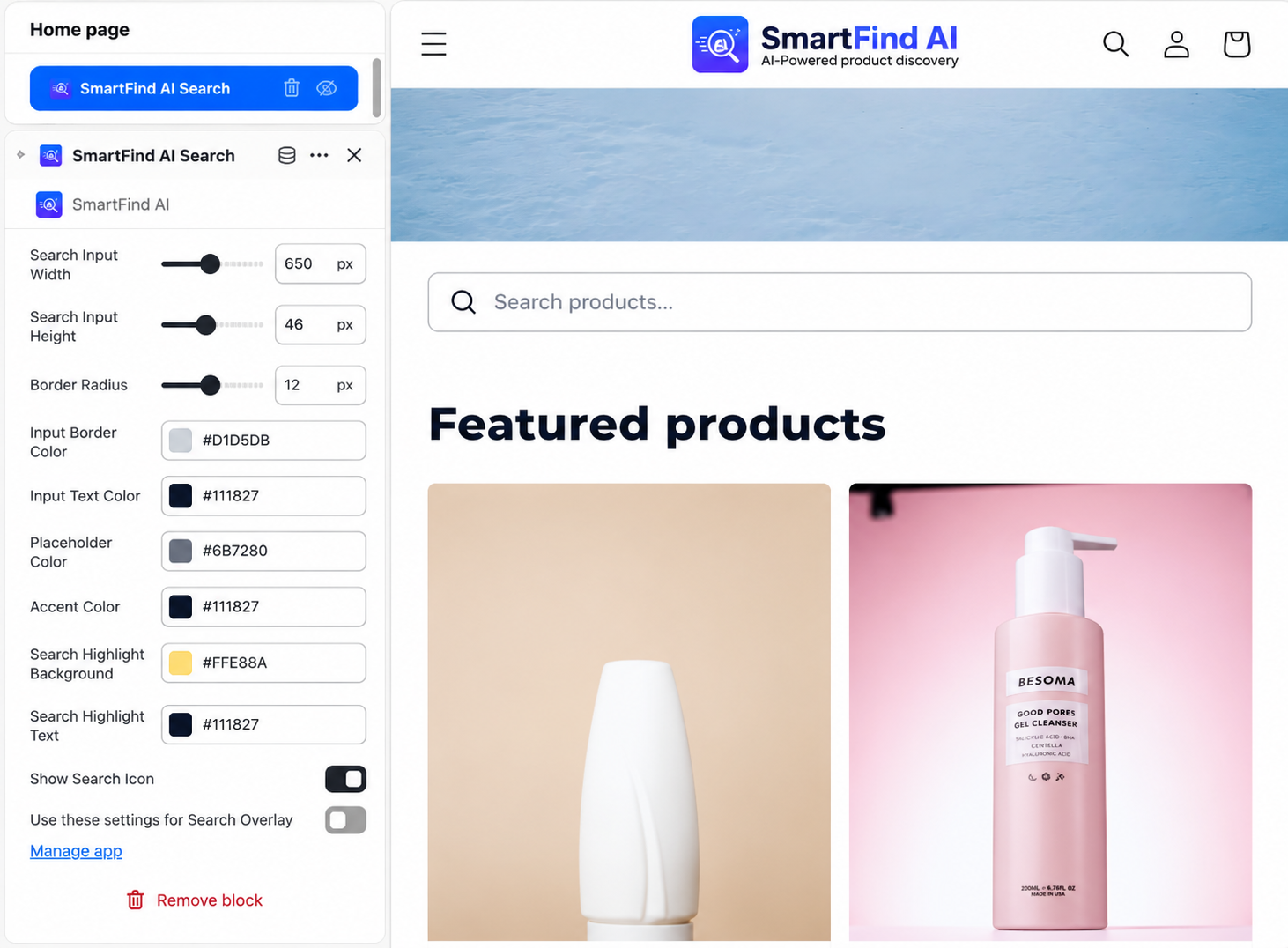
Add the block to a supported theme section to place a search bar where you want it. You can change:
Input width, height, border radius and border color.
Text, placeholder, accent and highlight colors.
Search icon visibility.
Whether it uses the search settings you set for the overlay.
Overlay or Search Block: which should I use?
Search overlay (app embed)
Search Block
What it does
Connects to your theme's existing search icon or search box.
Adds a new search bar wherever you place it.
Best for
Making your current search use SmartFind AI.
Putting a visible search bar on a page, such as the home page.
Layout change
None.
Adds one block to a section.
Add the Search Block
Open the Shopify Theme Editor for your store.
Open the page and section where you want the search bar.
Add the SmartFind AI Search Block.
Change the width, colors and other options to match your theme.
Click Save, then test it on your storefront.
Good places for a search bar include the header, a hero banner, a sidebar or a custom section.
AI search and instant results
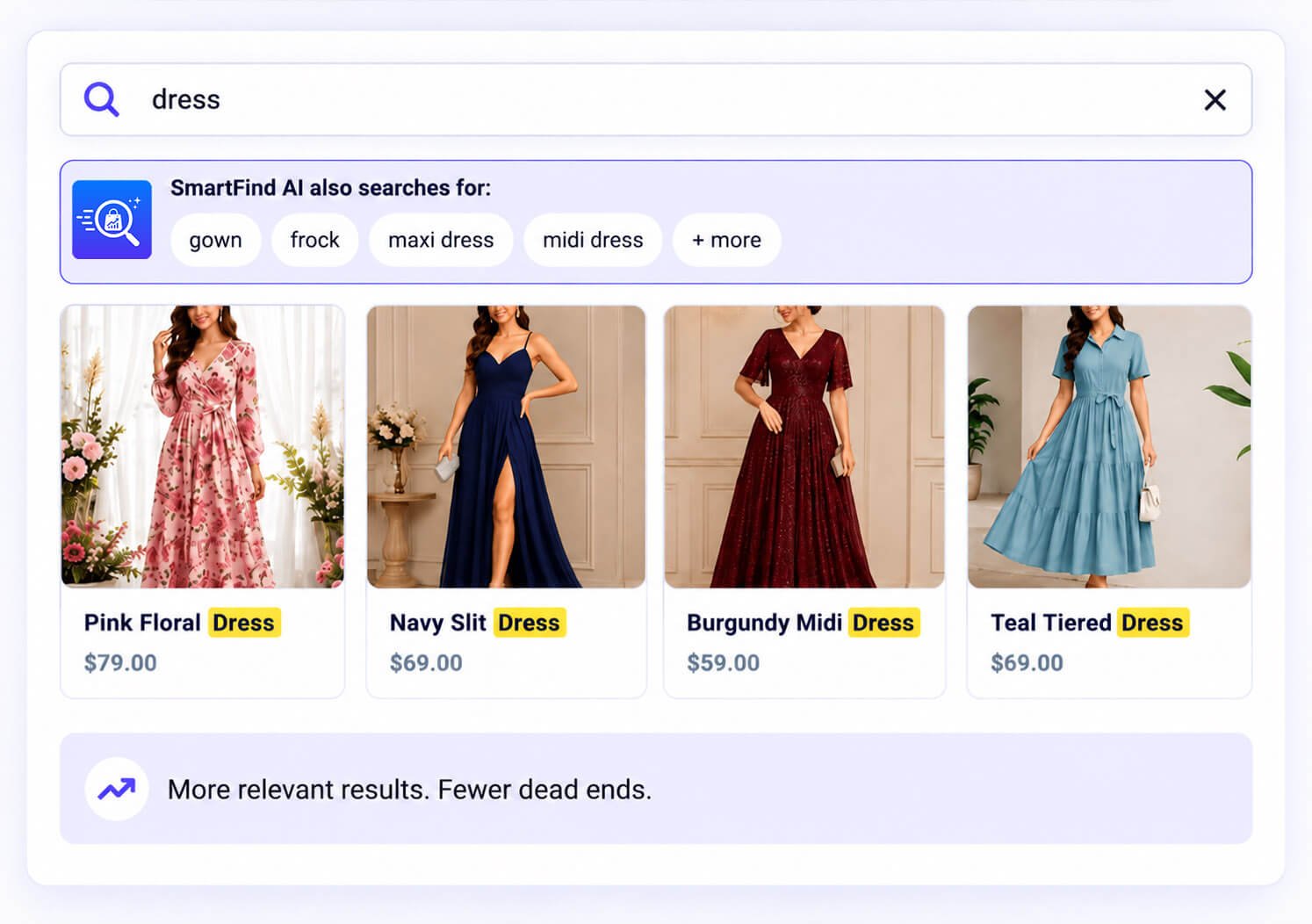
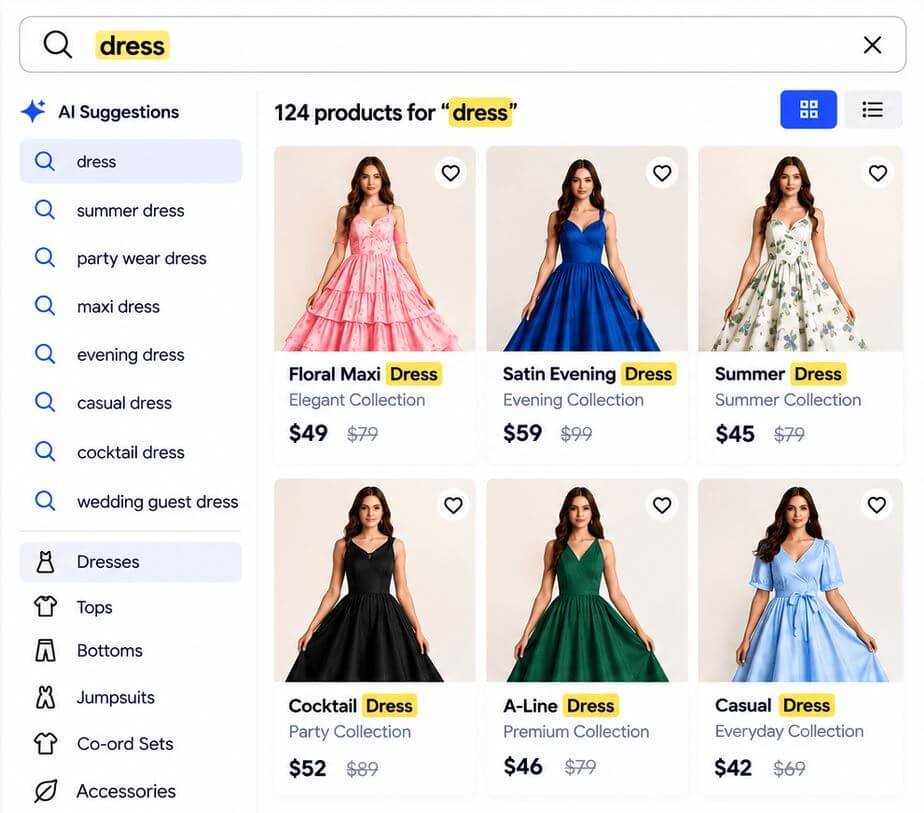
Shoppers see relevant products as they type, without leaving your store.
In simple words: Shoppers do not need to type the exact product name. They can type part of a word, use a different word, or make a small typing mistake, and still find what they want.
What shoppers get
AI-powered search across your synced Shopify catalog.
Instant results and autocomplete while typing.
Typo tolerance, so common typing mistakes still find products.
Results can show the product image, title, vendor, price and compare-at price. Each one opens the Shopify product page.
What you control
Improve relevance with synonyms and search rules. Change how results look in Search settings. AI suggestions depend on your plan, and Pro includes advanced
AI suggestions.
Search features explained
Instant search: results appear while the shopper is still typing.
Autocomplete: the search suggests words as the shopper types.
Typo tolerance: a small spelling mistake still finds the right products.
AI-powered search: the search looks at what the shopper means, not only the exact letters.
What a shopper sees, step by step
The shopper clicks your search icon or search box.
They start typing.
Suggestions and matching products appear straight away.
They click a product and land on its Shopify product page.
Tip: After a week of real searches, open Analytics to see what shoppers typed. Use synonyms to fix searches that found nothing.
AI Search Readiness
Find product pages that need better content for AI-powered discovery.
Review your catalog
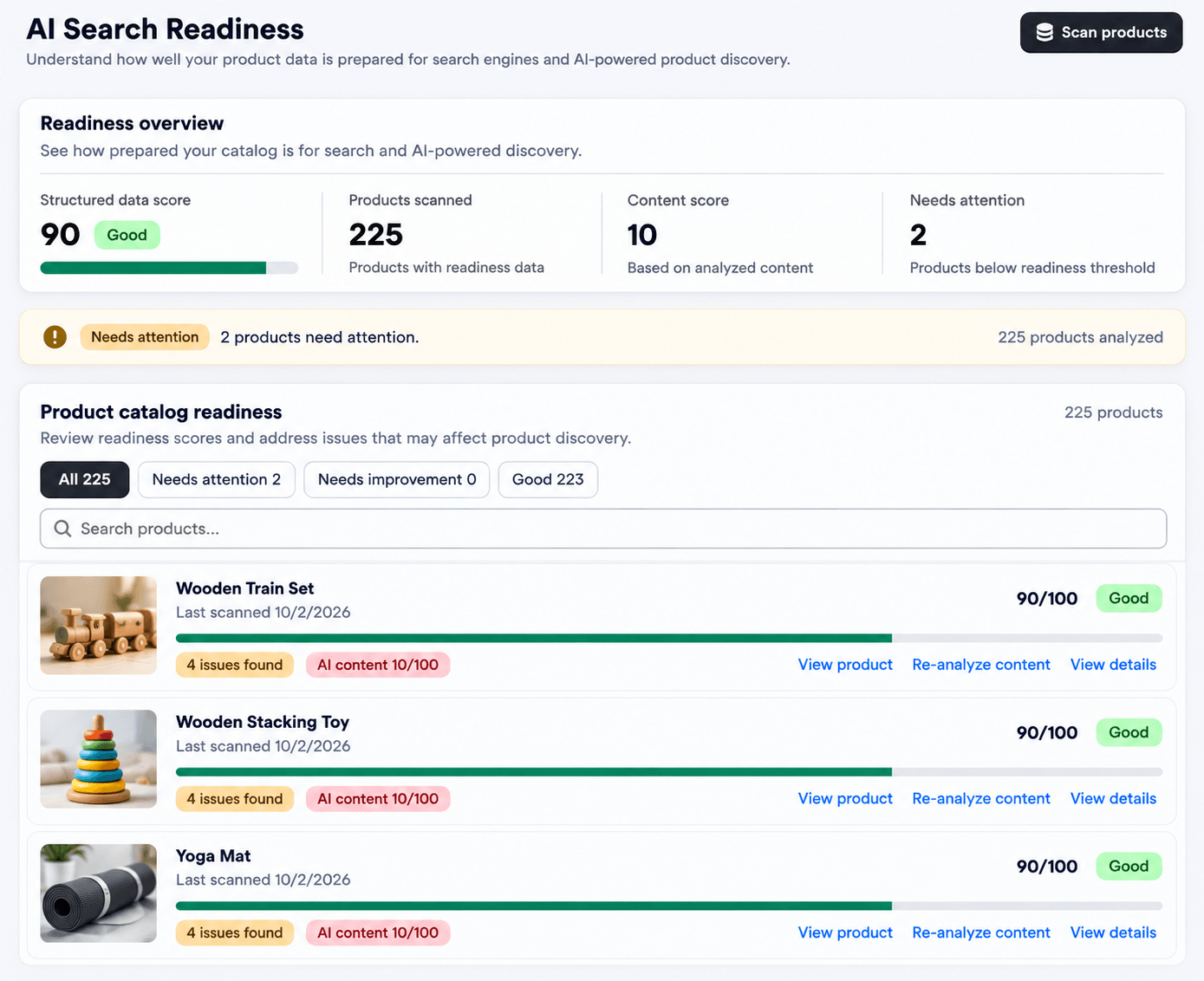
Open AI Search Readiness and click Scan products.
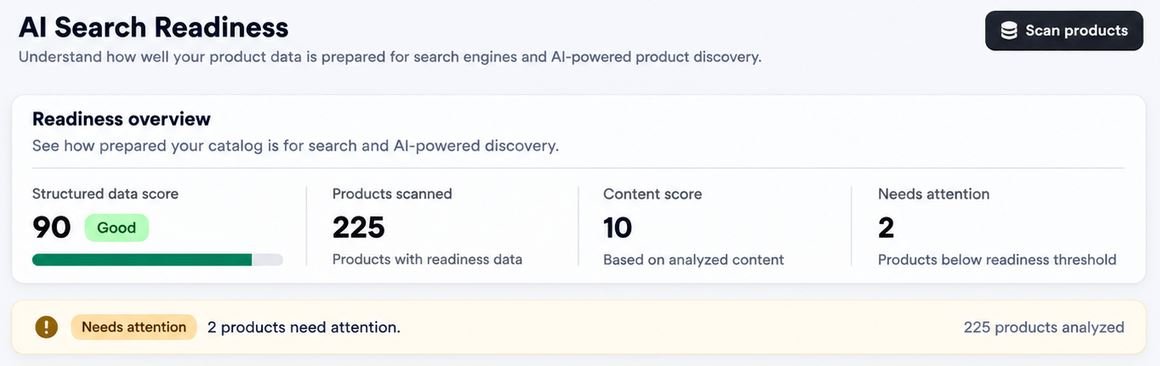
Check the overview: structured data score, products scanned, content score and products that need attention.
Use the All, Needs attention, Needs improvement and Good tabs, or search for a product.
For each product choose View product, Analyze content (or Re-analyze content) or View details.
Readiness score
Each product gets a score based on rules. It flags thin or missing descriptions, unclear content and missing useful details. Scoring doesn't use AI generations. The Dashboard shows how many products need attention.
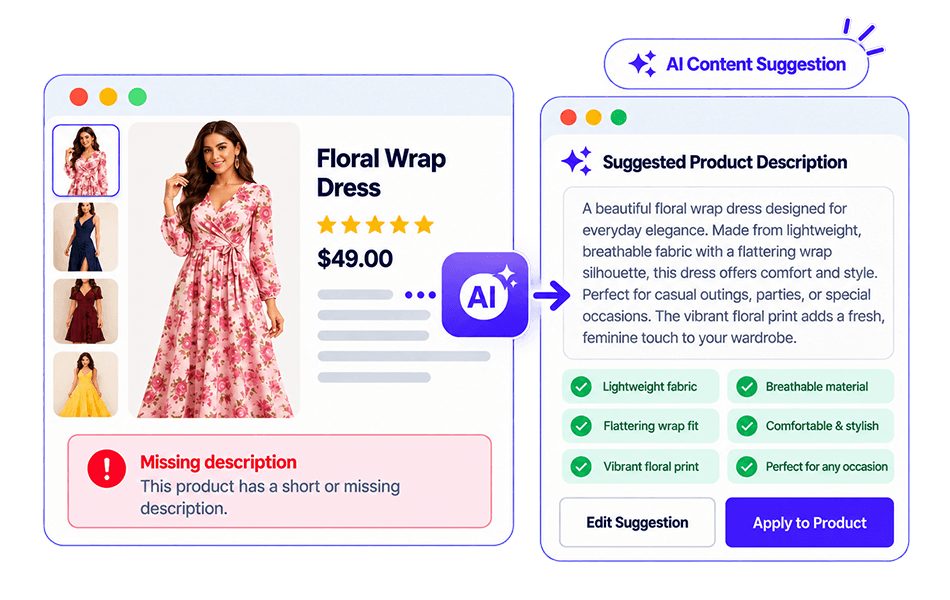
AI content suggestions
Select a product for AI analysis.
Review the content score, issues and suggested description.
Approve the suggestion if you want to use it.
Apply it to update the product in Shopify.
Important: Nothing changes in your store until you approve and apply. The AI is instructed not to invent specifications or claims, but always check the text against your product. Successful analyses count toward your monthly
AI generations.
Understanding the numbers
Structured data score: how well your product data is prepared for search engines and AI discovery.
Products scanned: how many products were checked.
Content score: a score based on the product content that was analyzed.
Needs attention: products that score below the readiness threshold.
Each product shows one of three labels: Good, Needs improvement or Needs attention.
Tips for better product content
Give every product a clear title and a full description.
Add product images.
Fill in product type, vendor and tags so search can match products better.
Start with the products that need attention.
Synonyms
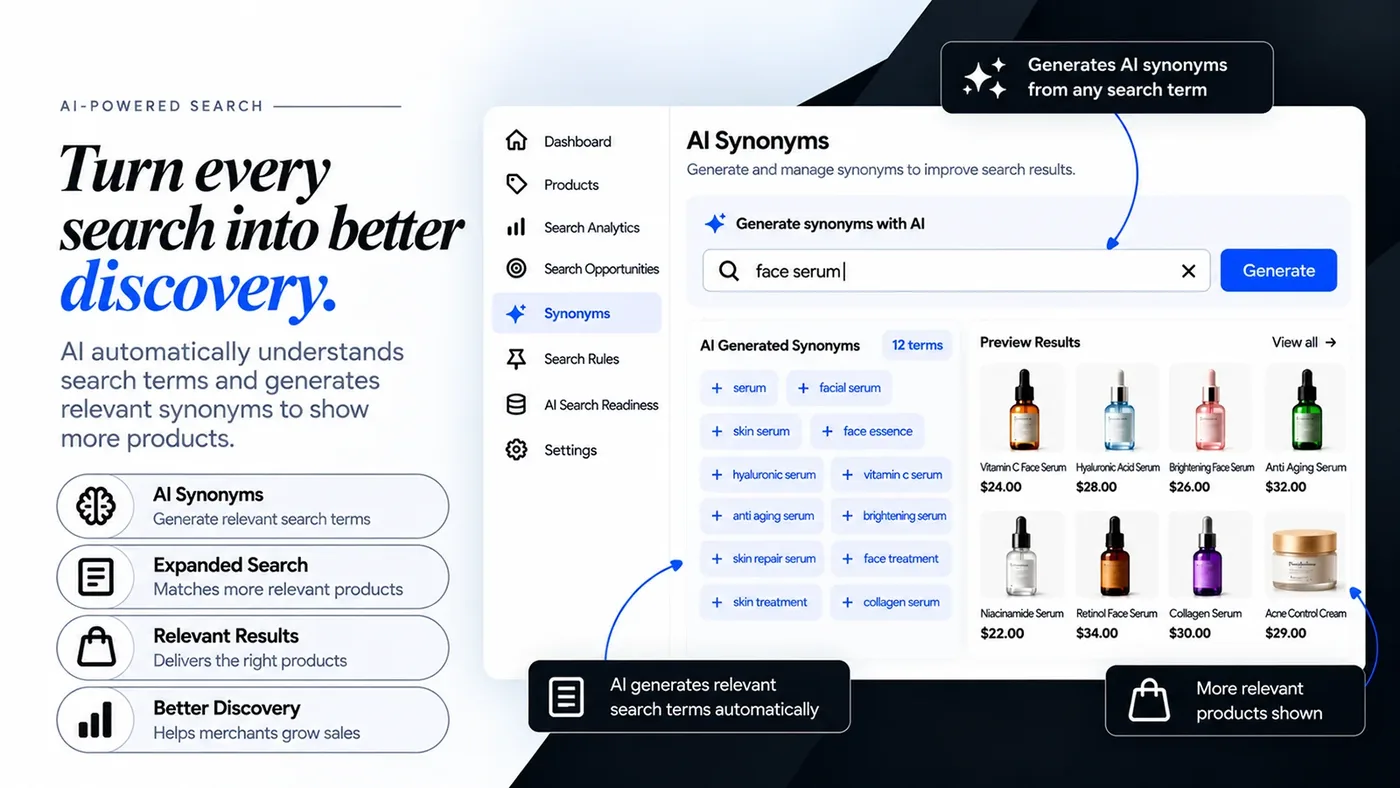
Shoppers use their own words. Synonyms connect those words to your catalog.
In simple words: A synonym group tells search that several words mean the same thing. When a shopper types any of them, they see the same products.
What this does
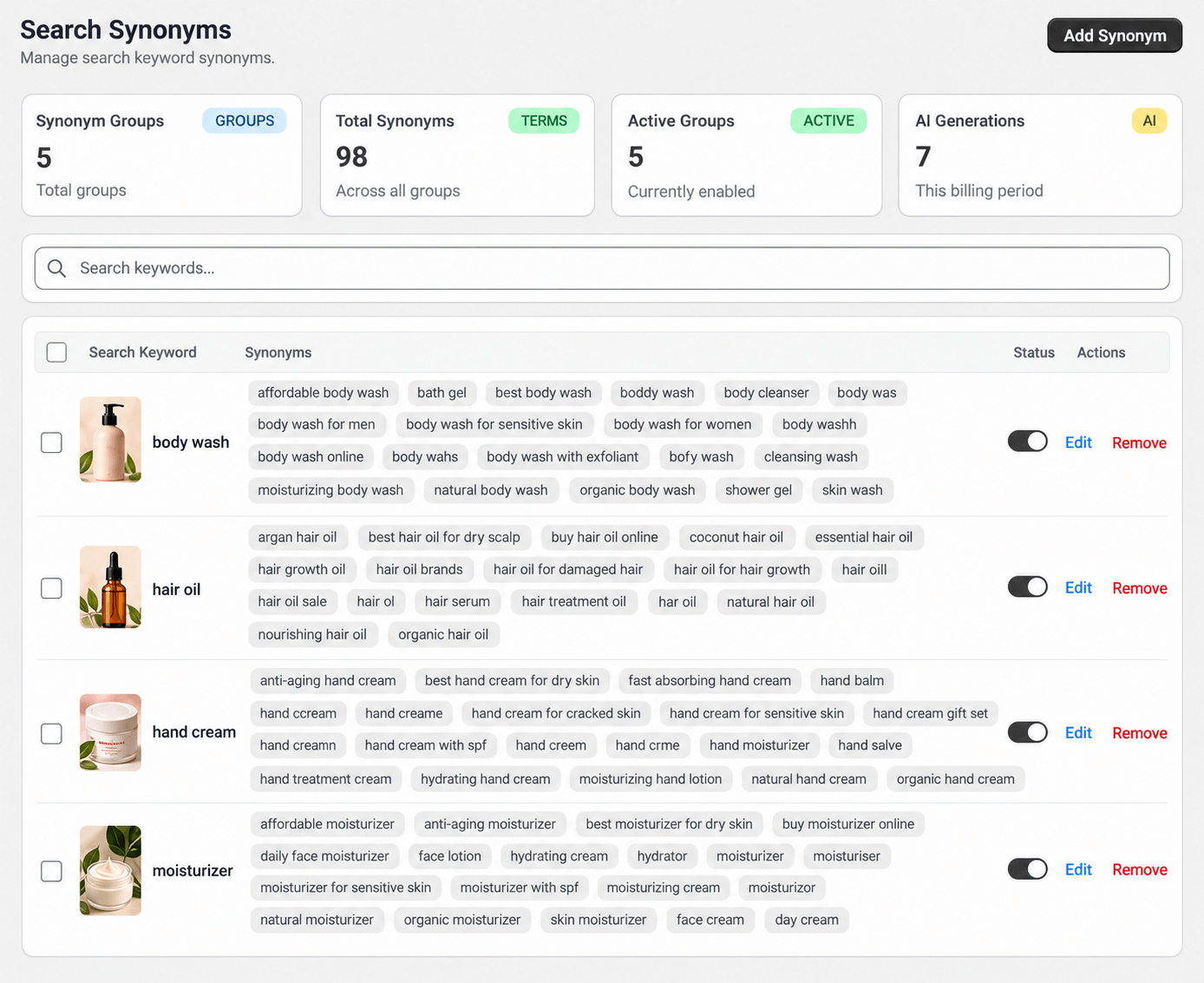
Shoppers often type brand-new words, plurals or typos. A synonym group links those words to one search keyword, so they all find the same products. The cards at the top show your groups, total terms, active groups and AI generations
used this billing period.
Manage synonym groups
Open Synonyms in the app.
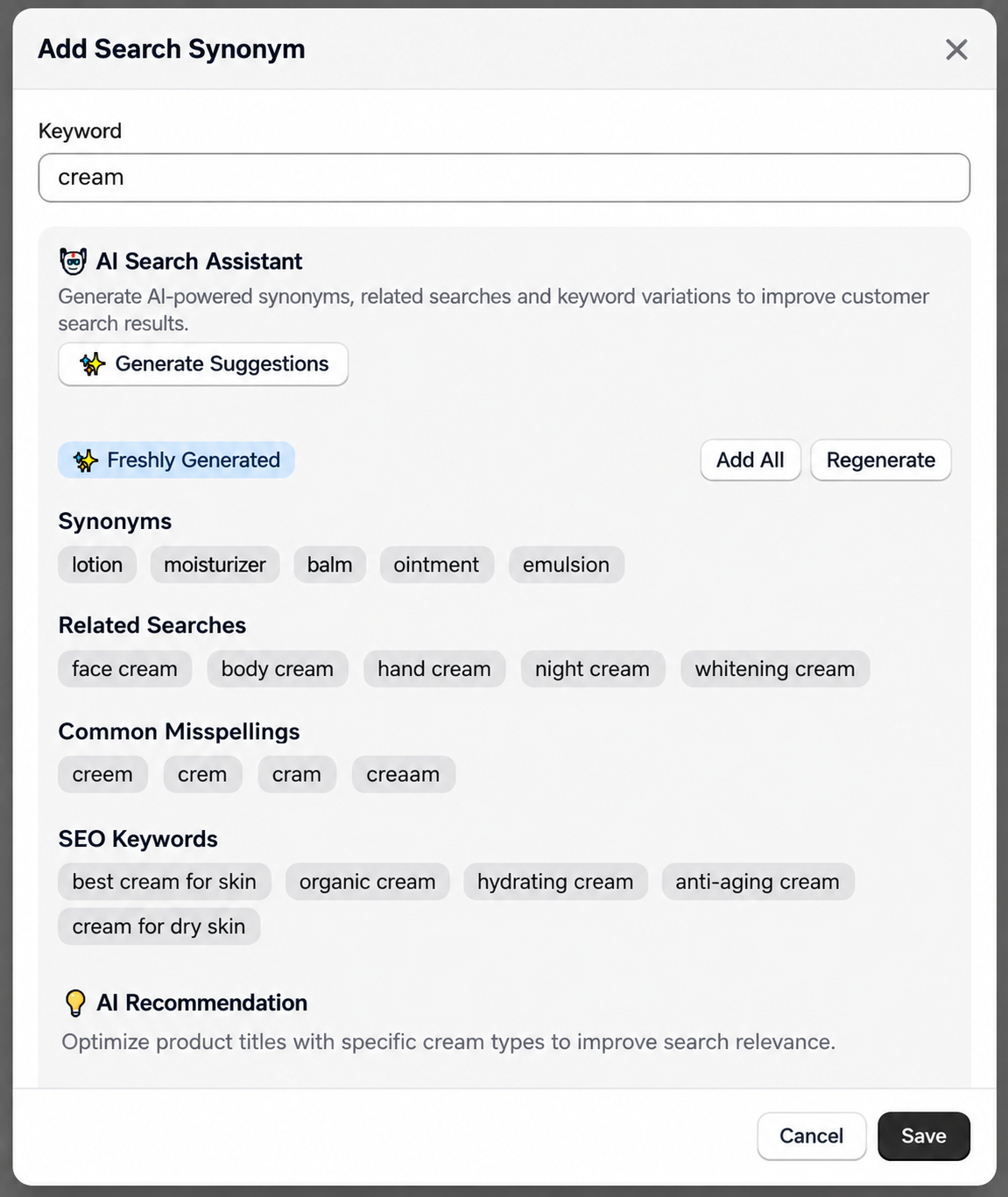
Create a group and add its related terms.
Optional: use AI to suggest related search terms.
Save. You can search, edit or delete groups at any time.
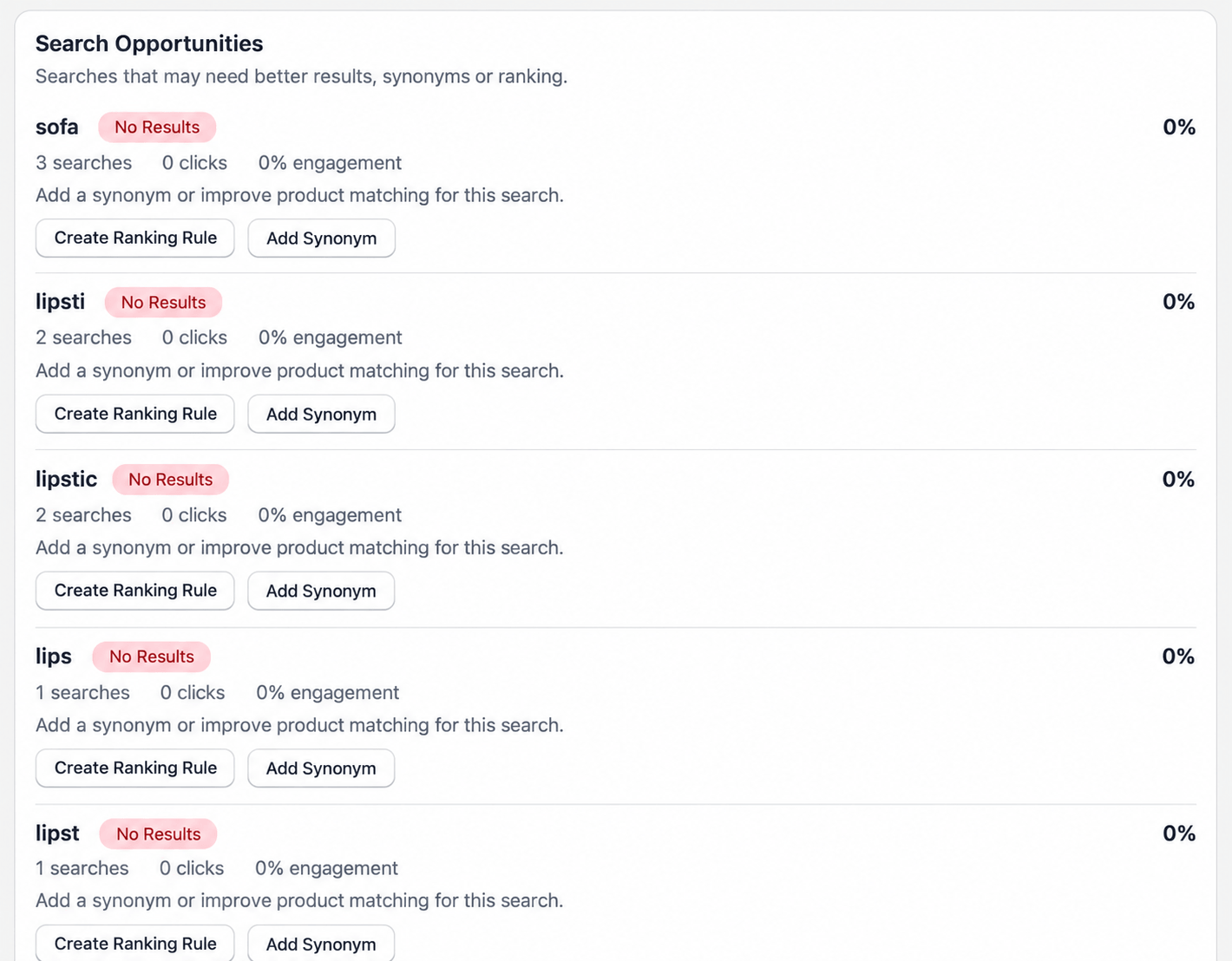
Tip: Use Search opportunities to find searches that need a synonym. The number of groups depends on your plan.
Example
Your store sells body wash, but shoppers also type "shower gel", "bath gel" and "body cleanser". Create a group with the keyword body wash and add those words. Now all four searches find your body wash products.
You can also add common spelling mistakes, such as "boddy wash", and spelling variants such as "moisturizer" and "moisturiser".
Tips for good groups
Make one group for each product idea. Keep the words in a group close in meaning.
Use the real words shoppers typed. You can find them in Analytics.
Each group has an on and off switch. Turn a group off to test your search without deleting the group.
Your plan sets how many groups you can have. See Plans and limits.
Pin, boost and hide
Use search rules to control which products shoppers see first.
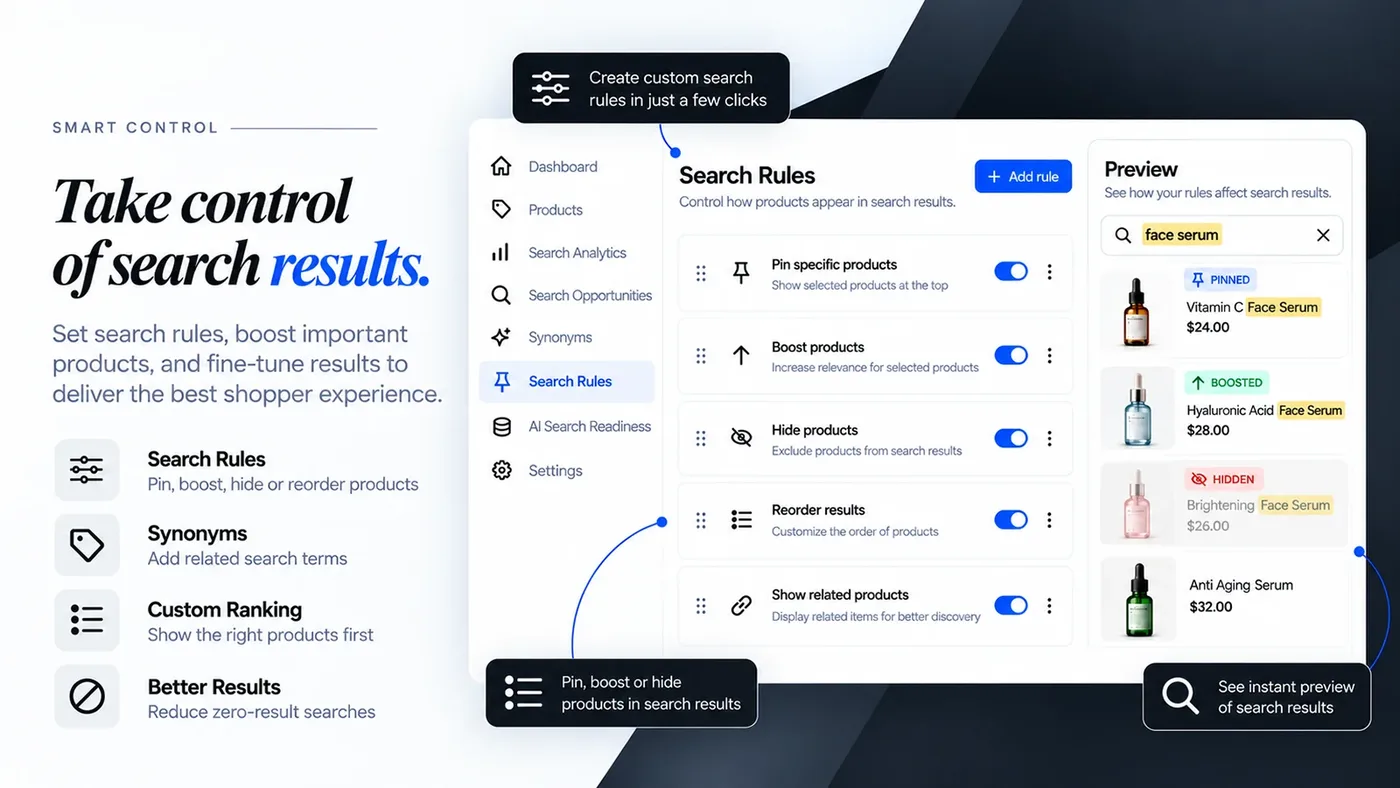
In simple words: Normally search decides the order of products. Search rules let you change that order for a keyword you care about.
Rule types
Pin keeps an important product at the top.
Boost raises a product's priority.
Hide keeps a product out of search results.
Create a rule
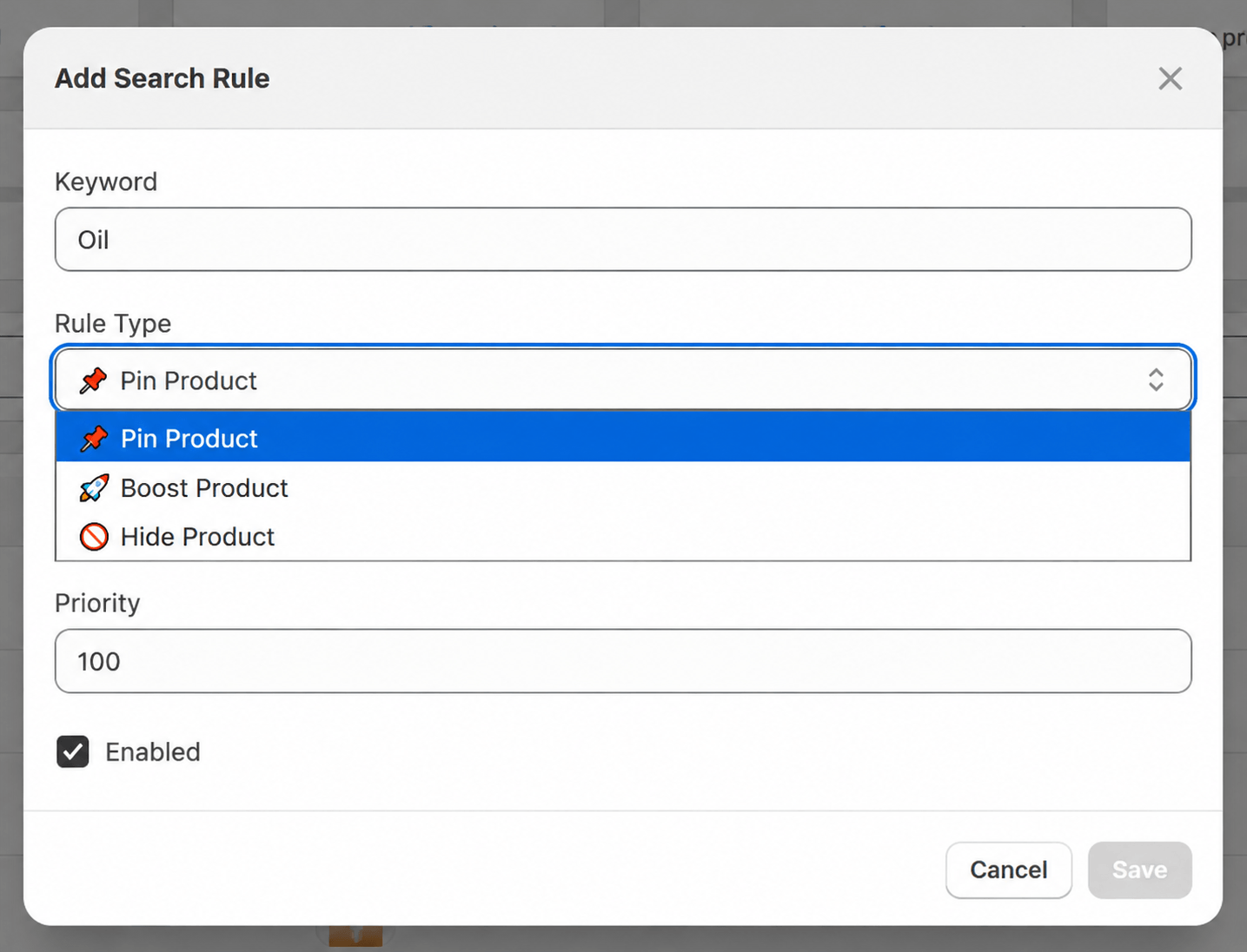
Open Search Ranking and click Add Rule.
Type the search Keyword.
Choose the Rule Type: Pin, Boost or Hide Product.
Select the product and set a priority.
Turn the rule on and click Save.
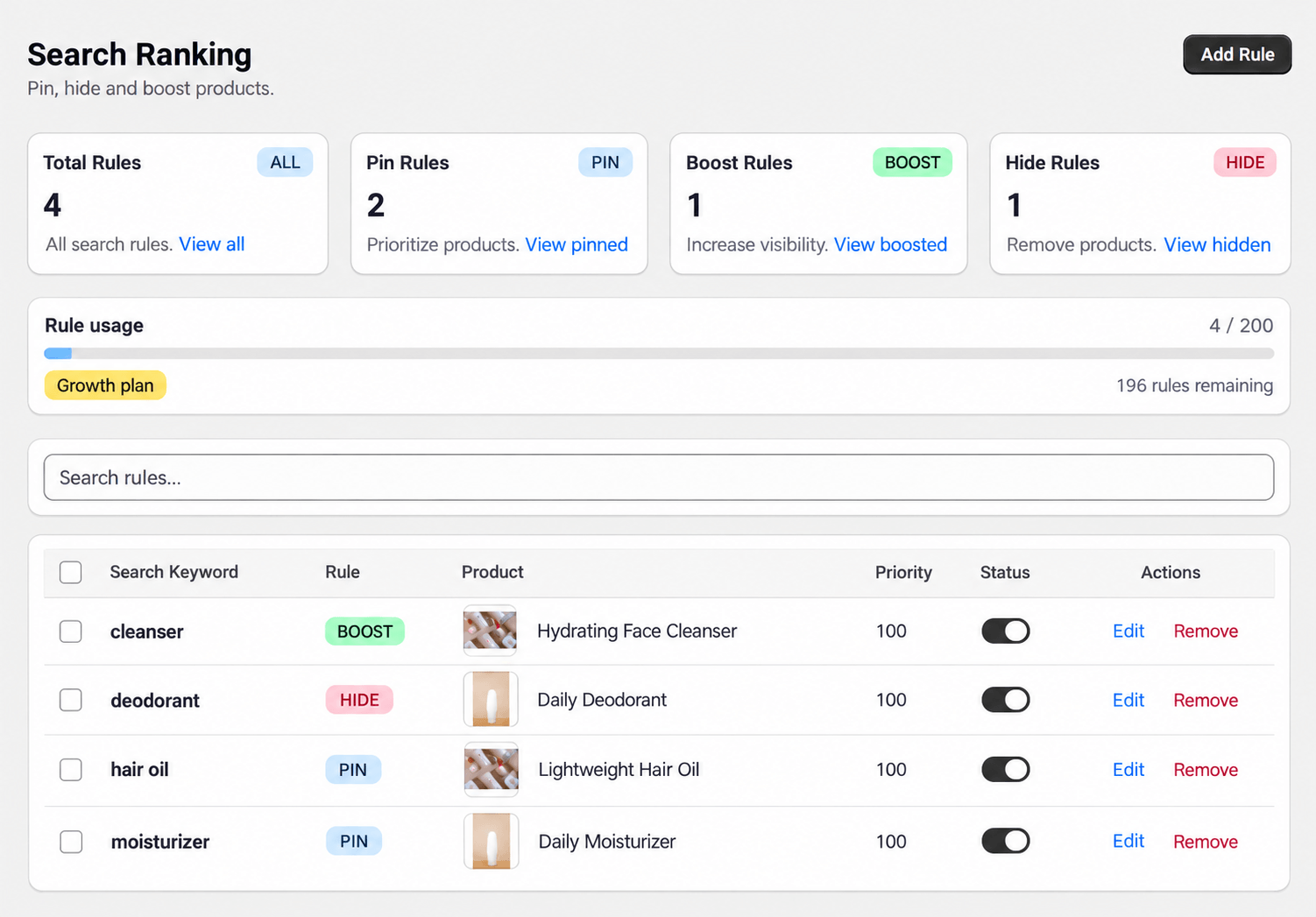
You can search, filter, edit, disable or delete rules. The page shows how many rules you've used against your plan limit. See Plans and limits.
When to use each rule
Pin: you want your best product first. Example: pin "Lightweight Hair Oil" for the keyword "hair oil".
Boost: you want a product to rise but not be locked at the top. Example: boost "Hydrating Face Cleanser" for "cleanser".
Hide: you do not want a product in results for a keyword. Example: hide "Daily Deodorant" for "deodorant".
Good habits
Give each rule one clear goal.
Do not pin too many products for the same keyword.
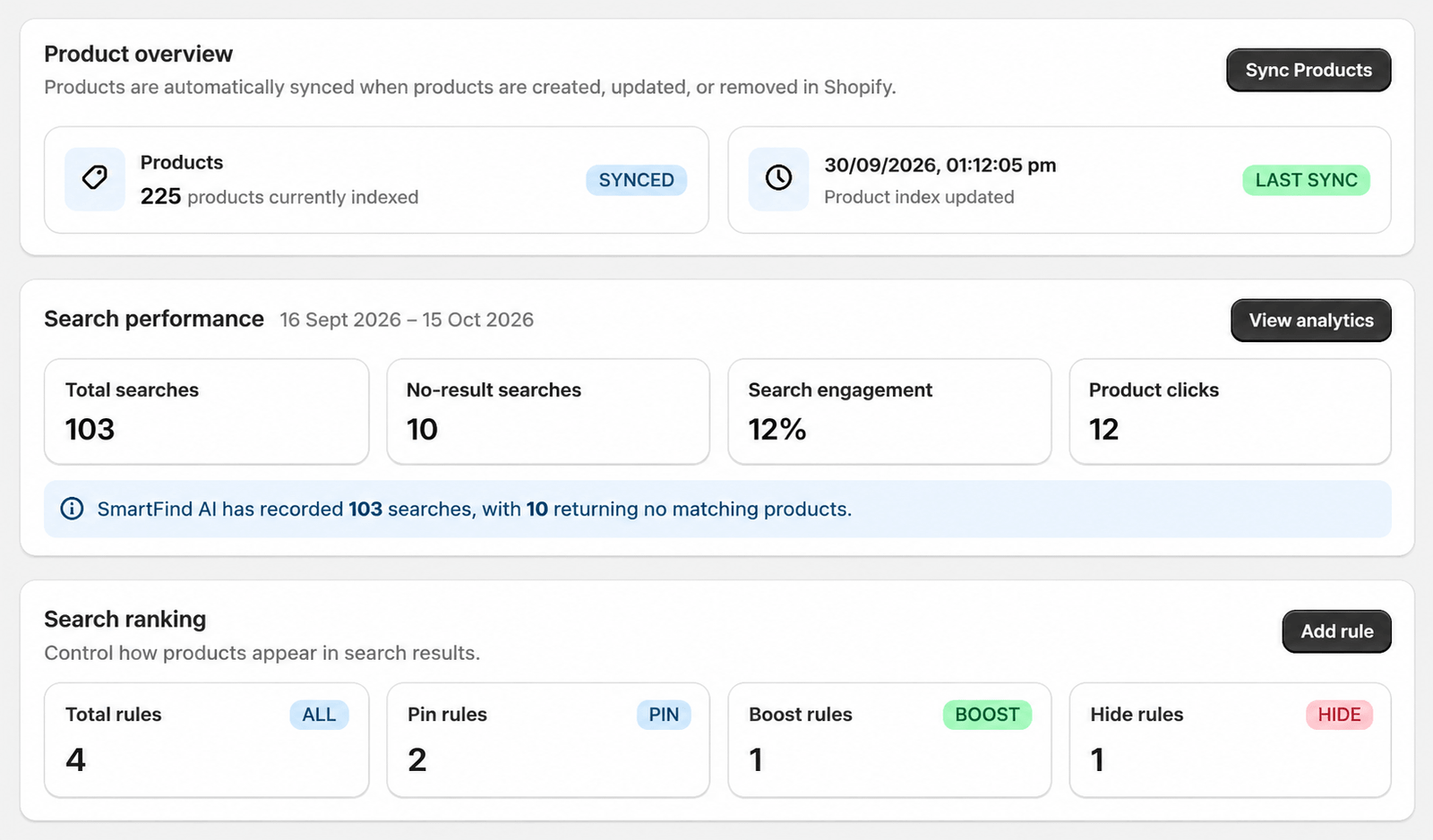
Watch the rule usage bar. It shows how many rules you have used out of your plan limit, for example 4 of 200.
Product sync
SmartFind AI keeps its search index in step with your Shopify products. You don't maintain a second catalog.
How it works
An initial sync runs after install, up to your plan's product limit.
Product create, update and delete events update search automatically.
Inactive or deleted products are removed from search.
Synced details include title, handle, vendor, type, status, tags, image, SKU, price and compare-at price.
Manual sync
You can run a manual sync from the app at any time to refresh your catalog.
Important: If you change plans, your product limit changes. Products skipped earlier are not guaranteed to be indexed automatically, so run a manual sync afterward and check that the products you expect are searchable.
If a product is missing from search
Check that the product is active in Shopify.
Check that you are within your plan's product limit.
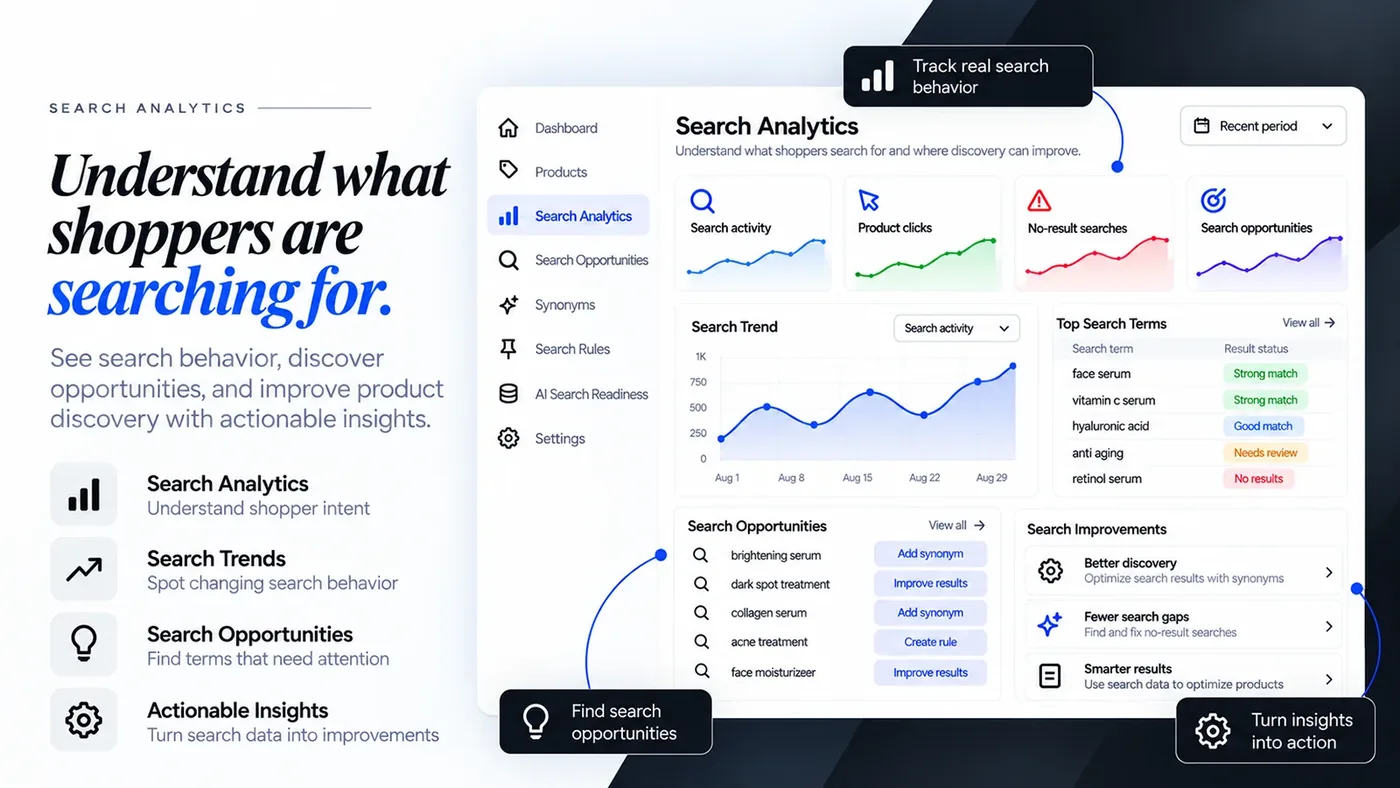
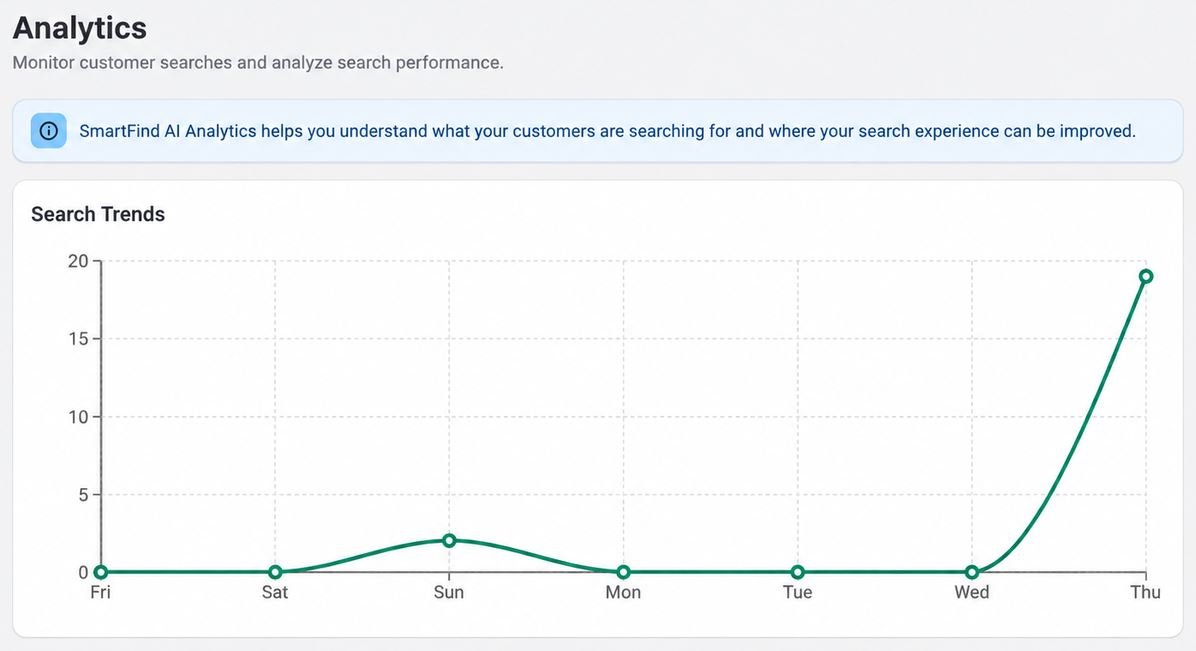
See what shoppers search for and how they interact with results.
Metrics at a glance
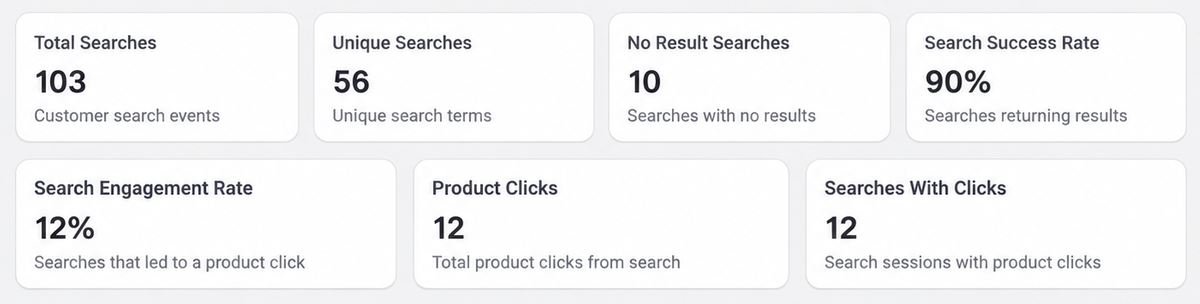
Total searches and unique searches.
No result searches and search success rate.
Search engagement rate, product clicks and searches with clicks.
What is tracked
Search queries and trends.
Search clicks.
Searches with no results.
Searches with low engagement.
Where to see it
The Dashboard shows a summary. Open Analytics for the detailed view. How long data is kept depends on your plan: 7 days on Free, 90 days on Growth and 180 days on Pro.
Tip: Advanced analytics with opportunities is listed under the Growth and Pro plans. See Plans and limits.
Example
Shoppers search for "shower gel" and see no results, but you sell body wash. Add "shower gel" as a synonym of "body wash". The next shopper who searches "shower gel" sees your body wash products.
If shoppers search for "cleanser" but rarely click, check the results. Use a Pin or Boost rule to show your best cleanser first.
Plans and limits
Billing runs through Shopify. Your active plan sets your limits.
Free
Growth
Pro
Price
$0
$29.99/month or $316.69/year
$69.99/month or $739.09/year
Products
100
10,000
25,000
Search usage
Fair use
High usage
Unlimited
AI generations
10/month
300/month
1,000/month
Synonym groups
5
100
Unlimited
Search rules
10
200
Unlimited
Analytics retention
7 days
90 days
180 days
Analytics
Basic
Advanced + opportunities
Advanced + opportunities
Search ranking
Basic
Full
Advanced
Advanced AI suggestions
No
No
Yes
Priority support
No
No
Yes
Change your plan from the app's billing page. You can also see the plans on the Shopify App Store listing.
Which plan fits?
Free: good for trying SmartFind AI on a small store, with up to 100 products and 7 days of basic analytics.
Growth: for growing stores with up to 10,000 products, advanced analytics with search opportunities, and 300 AI generations a month.
Pro: for large catalogs with up to 25,000 products, unlimited synonyms and rules, 180 days of analytics, and 1,000 AI generations a month.
Troubleshooting
Quick checks for common problems.
Search doesn't appear on my storefront
Check that the SmartFind AI app embed is on in the Theme Editor, and that Smart Search is on in Search settings. Also check the minimum characters setting.
A product is missing from results
Check that the product is active in Shopify and within your plan's product limit. Make sure no Hide rule applies to it. Then run a manual sync.
Products are missing after I changed plans
Run a manual sync, then check that the products you expect are searchable.
Check that your rule is turned on and that its priority is right. Check your rule count against your plan limit.
A synonym group is not working
Check that the group switch is on and the words are spelled the way shoppers type them. Check that you are within your plan's group limit. Then test again on your storefront.
Analytics looks empty
Analytics records real shopper searches, so run a few searches on your store first. Check that the app embed is on. Remember that your plan keeps data for 7, 90 or 180 days.
AI analysis does not run
You may have used your monthly AI generations. Check your plan's allowance in Plans and limits. Rule-based readiness scoring still works.